Navigation

Friday, July 02, 2010

.Net Tools

The purpose of this post is to list some .Net related applications, tools, utilities and add-ons with brief descriptions that I use or find useful.

Application Description

Visual Studio 2010 Pro Power Tools

(June 25, 2010, 10.0.10608.1630)

http://visualstudiogallery.msdn.microsoft.com/en-us/d0d33361-18e2-46c0-8ff2-4adea1e34fef

Revision Notes

  • 10.0.10608.1630
    Fixed issue where Visual Studio may crash on startup on computers where proxies required user entered credentials.

Visual Studio 2010 Productivity Power Tools

A set of extensions to Visual Studio Professional (and above) which improves developer productivity.

  • Document Well 2010 Plus (More Info)
    One of the key pieces of feedback that we have received over several versions of Visual Studio is that users want to be able to customize the behaviour of their document tabs.  From the ordering of tabs to the position of the close buttons, user can now configure dozens of different options for their tabs.  Go to Tools -> Options -> Environment -> Document Tab Well to configure these options as you prefer:
    • Tab Well UI
      • Scrollable tabs
        Maintain spatial consistency of the documents that are included in the document well.
      • Vertical tabs
        Document tabs are shown vertically, allowing you to fit more tabs than are normally visible when shown horizontally.
      • Pinned tabs
        Allows you to pin tabs to keep them always visible and available.
      • Show close button in tab well
        Similar to Visual Studio 2008, will show a close button in the document well that will close the active tab.
    • Tab Behavior
      • Remove tabs by usage order (LRU)
        When a new tab is inserted and existing tabs don't fit in the document well, instead of removing the tab at the end of the well it will remove the least recently used tab. This ensures that frequently used tabs are readily available.
      • Show pinned tabs in a separate row/column
        Pinning tabs can quickly cause you to run out of space for regular tabs. The option allows you to always show pinned tabs in a separate row (or column, if displayed vertically) from regular tabs.
    • Sorting
      • Sort tabs by project
        Tabs will be sorted by the project they belong to, thus keeping them always together in the document tab well.
      • Sort tabs alphabetically
        Tabs will be sorted alphabetically. When Sort By Project is turned on, tabs will be sorted first by project and then alphabetically.
      • Sort tab well dropdown alphabetically
        The drop down menu at the right end of the document well is sorted alphabetically. This option allows ordering as the tabs are laid out in the document well.
    • Tab UI
      • Color tabs according to their project or according to regular expressions
        This option permits tabs to be colored according to the project they belong to. This is particularly useful when sorting tabs by project, as it allows you to immediately identify different groups of project documents.
        You can also configure regular expressions and assign a color to each one. If the name of a tab matches the configured regular expression, it will be colored with the assigned color.
      • Miscellaneous options that modify tab UI
        • Show document/toolwindow icon in tab
        • Show close button in tab
        • Modify dirty indicator style
          This option allows you to select from a set of different dirty indicators that you might prefer over the asterisk.
        • Modify minimum and maximum tab size
          Allows you to modify minimum and maximum tab size. Try setting minimum and maximum sizes to the same value, and you will have evenly spaced tabs.
  • Searchable Add Reference Dialog (More Info)
    The new Add Reference dialog makes it faster and easier for you to find the reference that you are looking for and add it to your VB, C# or F# project.  From the Solution Explorer, simply right click on the References node, select the Add Reference command to see the updated Add Reference Dialog. 
  • Highlight Current Line
    As the resolution of monitors increases, it’s becoming more difficult to find the caret in the code editor.  The highlight current line extension makes it easy to find the caret by highlighting the line that the caret is on in the editor.  You can even configure the default colour by changing the setting for “Current Line (Extension)” and “Current Line Inactive (Extension)” in Tools Options Fonts & Colors. 
  • HTML Copy (More Info)
    This extension provides support for the HTML Clipboard format when copying code from the editor.  This means that you’ll no longer have to go fix up the formatting of your code when you paste it into a TFS bug form or any other HTML based control. 
  • Triple Click
    It’s never been easier to select a line of code from the mouse by simple triple-clicking anywhere on the line. 
  • Fix Mixed Tabs
    Some developers prefer tabs, others prefer spaces, and nobody likes mixing tabs & spaces.  This extension promotes developer harmony by warning as they are open or save a file that has a mixture of tabs & spaces.  The information bar also provides an easy way to fix the file to suit your preference. 
  • Ctrl + Click Go To Definition
    This extension gives the editor a web browser by adding clickable hyperlinks to symbols in your code as you hold down the Ctrl key.
  • Align Assignments
    This extension is useful for making your code a little more readable by aligning the assignments when you type Ctrl+Alt+] such that it takes this:

    And turns it into this:

    Please note: This may conflict with your formatting settings. E.g. in C# you will need to disable: Tools->Options->Text Editor->C#->Formatting->Spacing->"Ignore spaces in declaration statements"
  • Colorized Parameter Help
    This extension improves consistency with the editor by applying syntax highlighting to the contents of the Parameter Help window for C# &VB. 
  • Move Line Up/Down Commands
    This extension maps the Alt+Up Arrow & Alt+Down Arrow keys such that they will move the current line of code or the selected lines up and down through the editor. 
  • Column Guides
    Since Visual Studio 2002, there has been a not so secret registry key which allowed user to draw a vertical line in the code editor.  This is very useful to remind developers that their full line of code or comments may not fit one a single screen. Thanks to this extension this feature has returned with UI configure it.  Simply place the cursor at the appropriate column and select Add Guideline from the context menu 

PowerCommands for Visual Studio 2010

June 16, 2010, Version 1.0.2.2

http://visualstudiogallery.msdn.microsoft.com/en-us/e5f41ad9-4edc-4912-bca3-91147db95b99

PowerCommands 10.0

PowerCommands 10.0 is a set of useful extensions for the Visual Studio 2010 adding additional functionality to various areas of the IDE. Visit the VSX Developer Center at http://msdn.com/vsx for more information about extending Visual Studio.
PowerCommands.jpg
Below is a list of the commands included in PowerCommands for Visual Studio 2010 version 10.0.
Enable/Disable PowerCommands in Options dialog
This feature allows you to select which commands to enable in the Visual Studio IDE. Point to the Tools menu, then click Options. Expand the PowerCommands options, then click Commands. Check the commands you would like to enable.
Note: All power commands are initially defaulted Enabled.
Format document on save / Remove and Sort Usings on save
The Format document on save option formats the tabs, spaces, and so on of the document being saved. It is equivalent to pointing to the Edit menu, clicking Advanced, and then clicking Format Document. The Remove and sort usings option removes unused using statements and sorts the remaining using statements in the document being saved.
Note: The Remove and sort usings option is only available for C# documents.
Note: Format document on save and Remove and sort usings both are initially defaulted OFF.
Clear All Panes
This command clears all output panes. It can be executed from the button on the toolbar of the Output window.
Copy Path
This command copies the full path of the currently selected item to the clipboard. It can be executed by right-clicking one of these nodes in the Solution Explorer:
The solution node; A project node; Any project item node; Any folder.
Email CodeSnippet
To email the lines of text you select in the code editor, right-click anywhere in the editor and then click Email CodeSnippet.
Insert Guid Attribute
This command adds a Guid attribute to a selected class. From the code editor, right-click anywhere within the class definition, then click Insert Guid Attribute.
Show All Files
This command shows the hidden files in all projects displayed in the Solution Explorer when the solution node is selected. It enhances the Show All Files button, which normally shows only the hidden files in the selected project node.
Undo Close
This command reopens a closed document , returning the cursor to its last position. To reopen the most recently closed document, point to the Edit menu, then click Undo Close. Alternately, you can use the CtrlShiftZ shortcut.
To reopen any other recently closed document, point to the View menu, click Other Windows, and then click Undo Close Window. The Undo Close window appears, typically next to the Output window. Double-click any document in the list to reopen it.
Collapse Projects
This command collapses a project or projects in the Solution Explorer starting from the root selected node. Collapsing a project can increase the readability of the solution. This command can be executed from three different places: solution, solution folders and project nodes respectively.
Copy Class
This command copies a selected class entire content to the clipboard, renaming the class. This command is normally followed by a Paste Class command, which renames the class to avoid a compilation error. It can be executed from a single project item or a project item with dependent sub items.
Paste Class
This command pastes a class entire content from the clipboard, renaming the class to avoid a compilation error. This command is normally preceded by a Copy Class command. It can be executed from a project or folder node.
Copy References
This command copies a reference or set of references to the clipboard. It can be executed from the references node, a single reference node or set of reference nodes.
Paste References
This command pastes a reference or set of references from the clipboard. It can be executed from different places depending on the type of project. For CSharp projects it can be executed from the references node. For Visual Basic and Website projects it can be executed from the project node.
Copy As Project Reference
This command copies a project as a project reference to the clipboard. It can be executed from a project node.
Edit Project File
This command opens the MSBuild project file for a selected project inside Visual Studio. It combines the existing Unload Project and Edit Project commands.
Open Containing Folder
This command opens a Windows Explorer window pointing to the physical path of a selected item. It can be executed from a project item node
Open Command Prompt
This command opens a Visual Studio command prompt pointing to the physical path of a selected item. It can be executed from four different places: solution, project, folder and project item nodes respectively.
Unload Projects
This command unloads all projects in a solution. This can be useful in MSBuild scenarios when multiple projects are being edited. This command can be executed from the solution node.
Reload Projects
This command reloads all unloaded projects in a solution. It can be executed from the solution node.
Remove and Sort Usings
This command removes and sort using statements for all classes given a project. It is useful, for example, in removing or organizing the using statements generated by a wizard. This command can be executed from a solution node or a single project node.
Extract Constant
This command creates a constant definition statement for a selected text. Extracting a constant effectively names a literal value, which can improve readability. This command can be executed from the code editor by right-clicking selected text.
Clear Recent File List
This command clears the Visual Studio recent file list. The Clear Recent File List command brings up a Clear File dialog which allows any or all recent files to be selected.
Clear Recent Project List
This command clears the Visual Studio recent project list. The Clear Recent Project List command brings up a Clear File dialog which allows any or all recent projects to be selected.
Transform Templates
This command executes a custom tool with associated text templates items. It can be executed from a DSL project node or a DSL folder node.
Close All
This command closes all documents. It can be executed from a document tab.

.NET Reflector (Free)
.NET Reflector Pro ($99)

Version 6.1.0

http://www.red-gate.com/products/reflector/

.NET Reflector v6 –Free

Explore and analyze compiled .NET assemblies, viewing them in C#, Visual Basic and IL. Now supports .NET 4 , and includes a 14-day free trial of .NET Reflector Pro.

Step into decompiled assemblies whilst debugging in Visual Studio

.NET Reflector Pro is an add-in to Visual Studio that lets you step straight into the source code of any managed assembly, even when the source is not available. View 3-step walk-through or the full demo video.

  • Step into decompiled assemblies and use all the debugging techniques you would use on your own code.
  • Get a better understanding of unfamiliar or poorly documented code, by stepping into it straight from the VS debugger.
  • Faced with a bug but not sure what is going on? Save time on debugging with .NET Reflector Pro.
Refactor!™ Pro for Visual Studio® ($99)


http://www.devexpress.com/Products/Visual_Studio_Add-in/Refactoring/
Never before has a developer tool been so easy to use. You don't have to be an architect or designer to reap the benefits from using Refactor! Pro™. Tasks you do all the time are suddenly much easier with Refactor!. Simply highlight the code you want to change — smart tags show what's available. Select the desired code change operation from the menu. Preview hinting marks up the code and shows the impact of the change before you commit.

See. We told you it was easy.

Amazing Productivity Boost

Declaring constants, renaming variables, simplifying complex code — these are the things developers do all the time to improve readability and the quality of the source code. Refactor! makes all this just a single keystroke away. Do the things you always do, now with greater speed, accuracy and efficiency!

Industry-grade Quality

At Developer Express, we're serious about quality. That's why Refactor! Pro is backed by 18,000+ test cases and a hardworking staff of developers and test case writers committed to continually exceeding your expectations.

Immediate Return on Investment

Refactor! Pro has everything developers need to become productive within minutes of installing. Most developers will experience a return on investment in the first day of use. If you write or maintain code for a living, you owe it to yourself to add Refactor! to your toolset.

Undisputed Refactoring Leader

With more than 150 refactorings, Refactor! Pro has more refactorings than any other tool for any platform. And best of all, it's from a company you can trust: Developer Express, the leading component, framework, and tool vendor for .NET.

CodeRush™ with Refactor!™ Pro


http://www.devexpress.com/Products/Visual_Studio_Add-in/Coding_Assistance/
Powerful. Efficient. Fast.

Today, software consumers demand more than ever before from developers. The pressure to deliver more features with higher quality in less time has never been greater. Developer Express created CodeRush for Visual Studio® .NET to help developers and managers meet these increased demands for quality and functionality, by boosting productivity while eliminating the repetition that erodes precious creativity.

For Developers, CodeRush for Visual Studio® .NET will help you create sophisticated code blocks in seconds and extend code templates instantly. CodeRush will complete identifiers as you type and expand or contract selections logically. With CodeRush, you will be able to instantly place selected code inside Try/Catch blocks, Regions and your own custom wrappers with ease. You can even reverse the logic of selected code and revisit important points within your code instantly (and effortlessly swap between locations).

The obvious question might be how or what does CodeRush do that my current editor doesn't since I'm quite productive now? The answer is that by integrating tightly with the Visual Studio® .NET IDE, CodeRush is able to improve the development environment from the inside out - bringing you new ways to look at code, new ways to generate code, new ways to navigate through code, and new ways to create your own extensions to your development environment.

CodeRush includes many powerful templates, but perhaps the most powerful CodeRush feature is the ability to build your own in seconds. Of course CodeRush for Visual Studio® .NET is also 100% managed code and fully integrated within the IDE itself, so you can start extending your development environment today using nothing but managed code. Every single CodeRush feature is implemented as a plug-in using Visual Studio's form designer and property browser. It's the fastest, most powerful way to extend Visual Studio® .NET -- guaranteed!

Like all Developer Express technologies, CodeRush for Visual Studio® .NET comes with a 60 day no hassle money back guarantee. If after trying CodeRush, you don't agree that it is the best and most productive way to create software in Visual Studio, you can obtain a refund, no questions asked.

SourceGear Fortress

http://www.sourcegear.com/products.html

Fortress is a cross-platform Application Lifecycle Management (ALM) solution for small and medium-sized teams. Fortress is everything Vault is with the addition of integrated work item tracking.

    SOS 5 Pending Checkins

  • World-class version control
  • Integrated work item tracking
  • Integration with Visual Studio
  • Integration with Eclipse
  • Windows stand-alone client
  • Windows, Mac OS X and Unix command-line clients
  • Free demo
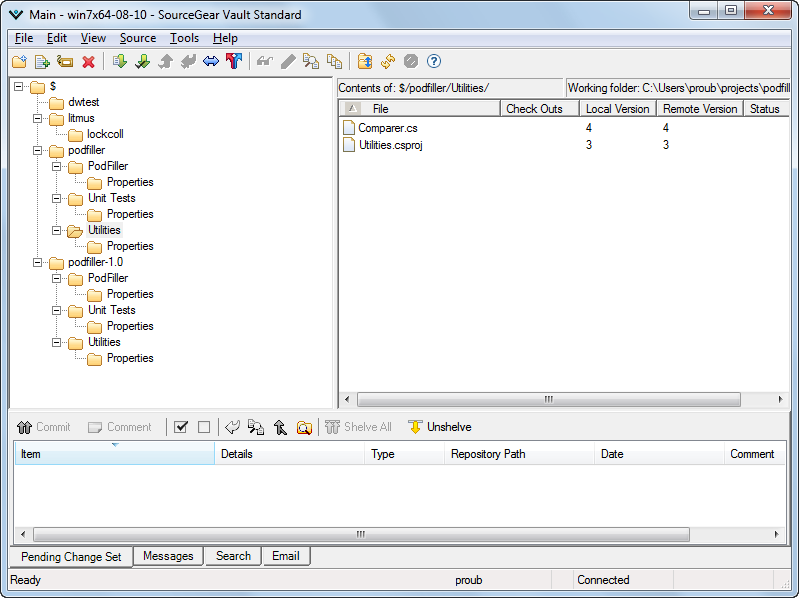
SourceGear Vault

http://www.sourcegear.com/products.html

Vault is a version control tool for professional development teams designed to be a compelling replacement for SourceSafe.

    SOS 5 Pending Checkins

  • Repository storage in SQL Server
  • Seamless transition from SourceSafe
  • Atomic Checkin Transactions
  • Designed for high performance, even for remote users
  • Integration with Visual Studio
  • Integration with Eclipse
  • Windows stand-alone client
  • Windows, Mac OS X and Unix command-line clients
  • Free 30-day evaluation
  • Free for a single user
PowerISO

http://www.poweriso.com/
PowerISO is a powerful CD/DVD image file processing tool, which allows you to open, extract, create, edit, compress, encrypt, split and convert ISO files, and mount these files with internal virtual drive. It can process almost all CD-ROM image files including ISO and BIN.
NAnt (.Net Build Tool)

http://nant.sourceforge.net/

NAnt is different.  Instead of a model where it is extended with shell-based commands, NAnt is extended using task classes.  Instead of writing shell commands, the configuration files are XML-based, calling out a target tree where various tasks get executed.  Each task is run by an object that implements a particular Task interface.

Granted, this removes some of the expressive power that is inherent in being able to construct a shell command such as 'find . -name foo -exec rm {}', but it gives you the ability to be cross-platform - to work anywhere and everywhere. And hey, if you really need to execute a shell command, NAnt has an <exec> task that allows different commands to be executed based on the OS it is executing on.

NDepend

http://www.ndepend.com/

Make your .NET Code Beautiful with NDepend
NDepend is a Visual Studio tool to manage complex .NET code and achieve high Code Quality. With NDepend, software quality can be measured using Code Metrics, visualized using Graphs and Treemaps, and enforced using standard and custom Rules.
Hence the software design becomes concrete, code reviews are effective, large refactoring are easy and evolution is mastered.


FxCop

http://msdn.microsoft.com/en-us/library/bb429476(VS.80).aspx

FxCop is an application that analyzes managed code assemblies (code that targets the .NET Framework common language runtime) and reports information about the assemblies, such as possible design, localization, performance, and security improvements. Many of the issues concern violations of the programming and design rules set forth in the Design Guidelines, which are the Microsoft guidelines for writing robust and easily maintainable code by using the .NET Framework.

FxCop is intended for class library developers. However, anyone creating applications that should comply with the .NET Framework best practices will benefit. FxCop is also useful as an educational tool for people who are new to the .NET Framework or who are unfamiliar with the .NET Framework Design Guidelines.

FxCop is designed to be fully integrated into the software development cycle and is distributed as both a fully featured application that has a graphical user interface (FxCop.exe) for interactive work, and a command-line tool (FxCopCmd.exe) suited for use as part of automated build processes or integrated with Microsoft Visual Studio® .NET as an external tool.

StyleCop
http://code.msdn.microsoft.com/sourceanalysis

StyleCop analyzes C# source code to enforce a set of style and consistency rules. It can be run from inside of Visual Studio or integrated into an MSBuild project.

NUnit

http://www.nunit.org/
What Is NUnit?

NUnit is a unit-testing framework for all .Net languages. Initially ported from JUnit, the current production release, version 2.5, is the sixth major release of this xUnit based unit testing tool for Microsoft .NET. It is written entirely in C# and has been completely redesigned to take advantage of many .NET language features, for example custom attributes and other reflection related capabilities. NUnit brings xUnit to all .NET languages.

ANTS Performance Profiler (RedGate)

http://www.red-gate.com/products/ants_performance_profiler/index.htm

ANTS Performance Profiler (Latest version: 6.0 )

NEW! .NET code profiler: Speed up the performance of your .NET applications

ANTS Performance Profiler for testing and optimizing code performance

  • Identify performance bottlenecks within minutes
  • Optimize .NET application performance
  • Drill down to slow lines of code with line-level timings
  • Profile aspx, ASP.NET, C# code, and VB.NET applications
  • Available as a standalone tool, or as part of the .NET Developer Bundle
ANTS Memory Profiler: Profile the memory usage of your .NET application (RedGate)

http://www.red-gate.com/products/ants_memory_profiler/index.htm

ANTS Memory Profiler: Profile the memory usage of your .NET application

Latest version: 5.2

Find memory leaks and optimize memory usage

memory profiling tool for finding .net memory leak

  • Check the memory usage of your .NET program
  • Find memory leaks within minutes
  • Optimize memory usage of your C# and VB.NET code
  • Available as a standalone tool or as part of the .NET Developer Bundle

Exception Hunter *(Red Gate)

Exception Hunter

Latest version: 2.1

Locate unhandled exceptions your program may throw and eliminate crashes before they happen

Exception Hunter box shot

  • Find the unhandled exceptions your functions can throw – before you even ship
  • View exactly where exceptions are thrown with the new source code view; thanks to technology from .NET Reflector you can do this even where you don't have the original source code

Until now, developers have had to wait until an error happened to find out which method throws which exceptions.

Exception Hunter is a static analysis tool that finds and reports the set of possible exceptions your functions might throw – before you even ship. With it, you can locate unhandled exceptions easily and quickly, down to the line of code that is throwing the exceptions. Once you have the results, you can decide which exceptions need to be handled (with some exception handling code) before you release your application into the wild.


Friday, June 25, 2010

Access WCF Service by WEBGet from Browser

If you want to expose a simple web service (WCF) so that it can be accessed by a web get or browser you need to first insure that the input and output are simple data types like strings or integers.

1.Create the web site project

2.  Add a reference to System.ServiceModel.Web (so we can access the WebGet decleration.

3.  Add your function and decerate it with the following;

<OperationContract()> _
    <WebGet()> _
    Function Dosmothing(ByVal pValue As String) As String


4.  Add the following to your web.config file;


 <webServices>
      <protocols>
        <add name="HttpGet"/>
        <add name="HttpPost"/>
      </protocols>
    </webServices>


5.  Update your service model to reflect the one below. 


<system.serviceModel>
<behaviors>
   <endpointBehaviors>
    <behavior name="NewBehavior">
     <webHttp />
    </behavior>
   </endpointBehaviors>
   <serviceBehaviors>
    <behavior name="my.Application.Behavior1">
     <serviceMetadata httpGetEnabled="true" />
     <serviceDebug includeExceptionDetailInFaults="false" />
    </behavior>
   </serviceBehaviors>
  </behaviors>
<services>
   <service behaviorConfiguration="Behavior1"
    name="myInterface">
    <endpoint behaviorConfiguration="NewBehavior" binding="webHttpBinding"
     bindingConfiguration="" contract="myInterface" />
   </service>
  </services>
</system.serviceModel>


6.Now you can access the function like this;


http://localhost:54433/myInterface.svc/DoSmothing?pValue=Smothing

Calling web service from browser

If you want to access a simple web service via the browser address line you have to add the following to the web.config to enable httpget.


 <system.web>
    <webServices>
      <protocols>
        <add name="HttpGet"/>
        <add name="HttpPost"/>
      </protocols>
    </webServices>


</system.web>


Then you can do this;


    <WebMethod()> _
    Public Function GetTime(ByVal pText As String) As String
        Return pText & " " & Now.ToString
    End Function


http://localhost:6722/WebService1.asmx/GetTime?pText=hi

Wednesday, June 23, 2010

Converting Image to String and Back in Base64

When you need to store an image as string for say xml transmission you will need to transfer it back and forth from base64 encoding.


Public Function ImageToBase64(image As Image, format As System.Drawing.Imaging.ImageFormat) As String
    Using ms As New MemoryStream()
        ' Convert Image to byte[]
        image.Save(ms, format)
        Dim imageBytes As Byte() = ms.ToArray()

        ' Convert byte[] to Base64 String
        Dim base64String As String = Convert.ToBase64String(imageBytes)
        Return base64String
    End Using
End Function


Public Function Base64ToImage(base64String As String) As Image
    ' Convert Base64 String to byte[]
    Dim imageBytes As Byte() = Convert.FromBase64String(base64String)
    Dim ms As New MemoryStream(imageBytes, 0, imageBytes.Length)

    ' Convert byte[] to Image
    ms.Write(imageBytes, 0, imageBytes.Length)
    Dim image__1 As Image = Image.FromStream(ms, True)
    Return image__1
End Function

Convert MemoryStream to String and String to MemoryStream

These functions allow you to swap strings and memory streams back and forth.


Public Shared Function GetMemoryStreamFromString(ByVal s As String) As IO.MemoryStream
        If s Is Nothing OrElse s.Length = 0 Then
            Return Nothing
        End If

        Dim m As New IO.MemoryStream()
        Dim sw As New IO.StreamWriter(m)
        sw.Write(s)
        sw.Flush()

        Return m
    End Function


    Public Shared Function GetStringFromMemoryStream(ByVal m As IO.MemoryStream) As String
        If m Is Nothing OrElse m.Length = 0 Then
            Return Nothing
        End If

        m.Flush()
        m.Position = 0
        Dim sr As New IO.StreamReader(m)
        Dim s As String = sr.ReadToEnd()
        Return s
    End Function

Tuesday, June 22, 2010

Clipx, Great clipboard history tool!

http://bluemars.org/clipx/

Visual Studio 2010 Pro Power Tools Released!

Microsoft released this package that is a set of extensions to Visual Studio Professional (and above) which improves developer productivity.


http://bit.ly/alyr2C

Revision Notes

10.0.10608.1630

Fixed issue where Visual Studio may crash on startup on computers where proxies required user entered credentials.

Visual Studio 2010 Productivity Power Tools


A set of extensions to Visual Studio Professional (and above) which improves developer productivity.


Document Well 2010 Plus (More Info)

One of the key pieces of feedback that we have received over several versions of Visual Studio is that users want to be able to customize the behaviour of their document tabs. From the ordering of tabs to the position of the close buttons, user can now configure dozens of different options for their tabs. Go to Tools -> Options -> Environment -> Document Tab Well to configure these options as you prefer:

Tab Well UI

Scrollable tabs

Maintain spatial consistency of the documents that are included in the document well.

Vertical tabs

Document tabs are shown vertically, allowing you to fit more tabs than are normally visible when shown horizontally.

Pinned tabs

Allows you to pin tabs to keep them always visible and available.

Show close button in tab well

Similar to Visual Studio 2008, will show a close button in the document well that will close the active tab.

Tab Behavior

Remove tabs by usage order (LRU)

When a new tab is inserted and existing tabs don't fit in the document well, instead of removing the tab at the end of the well it will remove the least recently used tab. This ensures that frequently used tabs are readily available.

Show pinned tabs in a separate row/column

Pinning tabs can quickly cause you to run out of space for regular tabs. The option allows you to always show pinned tabs in a separate row (or column, if displayed vertically) from regular tabs.

Sorting

Sort tabs by project

Tabs will be sorted by the project they belong to, thus keeping them always together in the document tab well.

Sort tabs alphabetically

Tabs will be sorted alphabetically. When Sort By Project is turned on, tabs will be sorted first by project and then alphabetically.

Sort tab well dropdown alphabetically

The drop down menu at the right end of the document well is sorted alphabetically. This option allows ordering as the tabs are laid out in the document well.

Tab UI

Color tabs according to their project or according to regular expressions

This option permits tabs to be colored according to the project they belong to. This is particularly useful when sorting tabs by project, as it allows you to immediately identify different groups of project documents.

You can also configure regular expressions and assign a color to each one. If the name of a tab matches the configured regular expression, it will be colored with the assigned color.

Miscellaneous options that modify tab UI

Show document/toolwindow icon in tab

Show close button in tab

Modify dirty indicator style

This option allows you to select from a set of different dirty indicators that you might prefer over the asterisk.

Modify minimum and maximum tab size

Allows you to modify minimum and maximum tab size. Try setting minimum and maximum sizes to the same value, and you will have evenly spaced tabs.

Searchable Add Reference Dialog

The new Add Reference dialog makes it faster and easier for you to find the reference that you are looking for and add it to your VB, C# or F# project. From the Solution Explorer, simply right click on the References node, select the Add Reference command to see the updated Add Reference Dialog.

Highlight Current Line

As the resolution of monitors increases, it’s becoming more difficult to find the caret in the code editor. The highlight current line extension makes it easy to find the caret by highlighting the line that the caret is on in the editor. You can even configure the default colour by changing the setting for “Current Line (Extension)” and “Current Line Inactive (Extension)” in Tools Options Fonts & Colors.

HTML Copy (More Info)

This extension provides support for the HTML Clipboard format when copying code from the editor. This means that you’ll no longer have to go fix up the formatting of your code when you paste it into a TFS bug form or any other HTML based control.

Triple Click

It’s never been easier to select a line of code from the mouse by simple triple-clicking anywhere on the line.

Fix Mixed Tabs

Some developers prefer tabs, others prefer spaces, and nobody likes mixing tabs & spaces. This extension promotes developer harmony by warning as they are open or save a file that has a mixture of tabs & spaces. The information bar also provides an easy way to fix the file to suit your preference.

Ctrl + Click Go To Definition

This extension gives the editor a web browser by adding clickable hyperlinks to symbols in your code as you hold down the Ctrl key.

Align Assignments

This extension is useful for making your code a little more readable by aligning the assignments when you type Ctrl+Alt+]

Please note: This may conflict with your formatting settings. E.g. in C# you will need to disable: Tools->Options->Text Editor->C#->Formatting->Spacing->"Ignore spaces in declaration statements"

Colorized Parameter Help

This extension improves consistency with the editor by applying syntax highlighting to the contents of the Parameter Help window for C# &VB.

Move Line Up/Down Commands

This extension maps the Alt+Up Arrow & Alt+Down Arrow keys such that they will move the current line of code or the selected lines up and down through the editor.

Column Guides

Since Visual Studio 2002, there has been a not so secret registry key which allowed user to draw a vertical line in the code editor. This is very useful to remind developers that their full line of code or comments may not fit one a single screen. Thanks to this extension this feature has returned with UI configure it. Simply place the cursor at the appropriate column and select Add Guideline from the context menu 

PowerCommands for Visual Studio 2010

This is a must have for the VB.net 2010 developer!

http://bit.ly/9SOxFl

PowerCommands 10.0


PowerCommands 10.0 is a set of useful extensions for the Visual Studio 2010 adding additional functionality to various areas of the IDE. Visit the VSX Developer Center at http://msdn.com/vsx for more information about extending Visual Studio.

Below is a list of the commands included in PowerCommands for Visual Studio 2010 version 10.0.

Enable/Disable PowerCommands in Options dialog

This feature allows you to select which commands to enable in the Visual Studio IDE. Point to the Tools menu, then click Options. Expand the PowerCommands options, then click Commands. Check the commands you would like to enable.

Note: All power commands are initially defaulted Enabled.

Format document on save / Remove and Sort Usings on save

The Format document on save option formats the tabs, spaces, and so on of the document being saved. It is equivalent to pointing to the Edit menu, clicking Advanced, and then clicking Format Document. The Remove and sort usings option removes unused using statements and sorts the remaining using statements in the document being saved.

Note: The Remove and sort usings option is only available for C# documents.

Note: Format document on save and Remove and sort usings both are initially defaulted OFF.

Clear All Panes

This command clears all output panes. It can be executed from the button on the toolbar of the Output window.


Copy Path

This command copies the full path of the currently selected item to the clipboard. It can be executed by right-clicking one of these nodes in the Solution Explorer:

The solution node; A project node; Any project item node; Any folder.


Email CodeSnippet

To email the lines of text you select in the code editor, right-click anywhere in the editor and then click Email CodeSnippet.


Insert Guid Attribute

This command adds a Guid attribute to a selected class. From the code editor, right-click anywhere within the class definition, then click Insert Guid Attribute.


Show All Files

This command shows the hidden files in all projects displayed in the Solution Explorer when the solution node is selected. It enhances the Show All Files button, which normally shows only the hidden files in the selected project node.


Undo Close

This command reopens a closed document , returning the cursor to its last position. To reopen the most recently closed document, point to the Edit menu, then click Undo Close. Alternately, you can use the CtrlShiftZ shortcut.

To reopen any other recently closed document, point to the View menu, click Other Windows, and then click Undo Close Window. The Undo Close window appears, typically next to the Output window. Double-click any document in the list to reopen it.


Collapse Projects

This command collapses a project or projects in the Solution Explorer starting from the root selected node. Collapsing a project can increase the readability of the solution. This command can be executed from three different places: solution, solution folders and project nodes respectively.


Copy Class

This command copies a selected class entire content to the clipboard, renaming the class. This command is normally followed by a Paste Class command, which renames the class to avoid a compilation error. It can be executed from a single project item or a project item with dependent sub items.


Paste Class

This command pastes a class entire content from the clipboard, renaming the class to avoid a compilation error. This command is normally preceded by a Copy Class command. It can be executed from a project or folder node.


Copy References

This command copies a reference or set of references to the clipboard. It can be executed from the references node, a single reference node or set of reference nodes.


Paste References

This command pastes a reference or set of references from the clipboard. It can be executed from different places depending on the type of project. For CSharp projects it can be executed from the references node. For Visual Basic and Website projects it can be executed from the project node.


Copy As Project Reference

This command copies a project as a project reference to the clipboard. It can be executed from a project node.


Edit Project File

This command opens the MSBuild project file for a selected project inside Visual Studio. It combines the existing Unload Project and Edit Project commands.


Open Containing Folder

This command opens a Windows Explorer window pointing to the physical path of a selected item. It can be executed from a project item node


Open Command Prompt

This command opens a Visual Studio command prompt pointing to the physical path of a selected item. It can be executed from four different places: solution, project, folder and project item nodes respectively.


Unload Projects

This command unloads all projects in a solution. This can be useful in MSBuild scenarios when multiple projects are being edited. This command can be executed from the solution node.


Reload Projects

This command reloads all unloaded projects in a solution. It can be executed from the solution node.


Remove and Sort Usings

This command removes and sort using statements for all classes given a project. It is useful, for example, in removing or organizing the using statements generated by a wizard. This command can be executed from a solution node or a single project node.


Extract Constant

This command creates a constant definition statement for a selected text. Extracting a constant effectively names a literal value, which can improve readability. This command can be executed from the code editor by right-clicking selected text.


Clear Recent File List

This command clears the Visual Studio recent file list. The Clear Recent File List command brings up a Clear File dialog which allows any or all recent files to be selected.


Clear Recent Project List

This command clears the Visual Studio recent project list. The Clear Recent Project List command brings up a Clear File dialog which allows any or all recent projects to be selected.


Transform Templates

This command executes a custom tool with associated text templates items. It can be executed from a DSL project node or a DSL folder node.


Close All

This command closes all documents. It can be executed from a document tab.

Monday, June 21, 2010

How to get index fragmentation of all indexes

SELECT ps.database_id, ps.OBJECT_ID,


ps.index_id, b.name,

ps.avg_fragmentation_in_percent

FROM sys.dm_db_index_physical_stats (DB_ID(), NULL, NULL, NULL, NULL) AS ps

INNER JOIN sys.indexes AS b ON ps.OBJECT_ID = b.OBJECT_ID

AND ps.index_id = b.index_id

WHERE ps.database_id = DB_ID()

ORDER BY ps.OBJECT_ID

GO

Monday, June 14, 2010

Small Basic V0.9 is here!

This is a great starting point for kids that not only teaches programming but math and logic!  The new release is full of features and bug fixes.

Learn the programming concepts starting with the fundamentals and move your way up. Small Basic is based on .NET and what you learn here could be easily applied to other .NET programming languages like Visual Basic. And when you do graduate to Visual Basic, you can bring your existing programs with you using a built-in conversion utility.


http://bit.ly/afcpeR

The Morning Brew

The Morning Brew is a great blog that covers daily news on Microsoft .Net!

http://bit.ly/cDAAT6

Thursday, June 10, 2010

Source Control Questions

Having used a few source control systems (visual studio, Source Gears Vault & Fortress, TFS and others) there is often some fundamental questions regarding source control in general.
Below is a short article from Source Gear’s Eric Sink on the topic;
Most people use only a small portion of the features of the version control system. If you use little more than checkout and checkin, you might actually be in the majority.
The "more advanced" features exist for teams and projects which are, er, more advanced. The bigger your team, the bigger your company, the more stuff you have going on, then the more powerful you want your Source Control Management (SCM) tool to be.
Even still, I've run across teams of significant size who prefer to use only the basics. The truth is that concurrent development is hard. Good SCM tools make it easier, but some people prefer to adopt processes which prevent complexity instead of using tools which help manage complexity.
But for those who dare, good version control systems offer several ways to maintain your sanity even while lots of things are going on at one time.
The most painless feature on the list is Label. Labels are conceptually very simple and are used by most teams. A label is used to mark a specific version of a file or a group of files. It is typical to apply a label when a project milestone is reached. A label is often applied when an important build is made, thus making it easier to retrieve the exact source code which corresponds to that build. In other SCM tools, labels are sometimes called "tags".
Suppose you've been working for months to deliver a beta to your customers. When you finally reach completion, you build your beta release. You want to remember exactly what the state of your repository was at the moment you reached beta, so you create a Label. You can later fetch the files from that Label and you will get the same versions you used to build your beta release.
Some processes call for the very frequent use of labels. For example, Sapient's BuildIt tool applies a label for every build it does.
Another rather painless feature on your list is Cloak. This one is actually even simpler. Cloak allows you to hide folders you don't care about. The folder is still there, but you no longer have to deal with it. For example, assume you have a big folder hierarchy. Three levels down, your marketing people placed a folder containing a whole bunch of enormous TIFF images. Developers don't want to be retrieving this stuff every time they do a get-latest operation. Luckily they can just cloak that folder and Vault will pretend it's not there. Cloak is a personal feature. When you cloak a folder, you hide it from yourself, but others can still see it.
Taking a step up the stairway of complexity we come to Share. This feature allows a folder or file to appear in multiple places in the repository. For you Unix-heads out there, Share is somewhat like a file system link.
For example, suppose your team's projects are in $/blue and another team in your company stores their work in $/red. They have a library in $/red/turboLib that you want to use, but you don't want to constantly be fetching everything else in $/red. So, you Share $/red and make it appear as $/blue/red/shares/turboLib. Now, the following two repository paths actually point to the same folder:
$/red/turboLib
$/blue/red/shares/turboLib
Any change to one of these folders will automatically appear in the other. They are not copies of each other. Rather, there is only one instance of the folder, and it simply shows up in two different places.
Note that Vault's Share command works considerably better than SourceSafe because folders can be shared, not just files. When you share a folder in SourceSafe, it just recursively shares every folder inside. If this example were done in SourceSafe, then $/blue/red/shares/turboLib would simply be a set of new folders which contain a bunch of files which are individually shared with their counterparts back in $/red/... However, the folders themselves are distinct. After the Share is created, if you add a file to $/red/turboLib, that new file will not automatically appear in $/blue/red/shares/turboLib. With Vault, the added file does appear, because the folders themselves are shared, not just the files.
Pin is handy when you have shared something but you want to freeze it. Let's say that you've been happily benefiting from the excellent efforts of the red team and you're very happy with how turboLib is working out for your project. Every time they checkin a change to turboLib, it magically becomes part of your tree as well. Suddenly one Friday, the manager of the red team decides that the fridge in their building will from now on be stocked with free beer for all the programmers. Shortly thereafter, the quality of turboLib starts going down. You are no longer quite as happy with the Share you established.
So, you bring up the Show History window and Pin $/blue/red/shares/turboLib to the version which existed on that fateful Friday. The red team can continue their "work" in $/red/turboLib, but your side of the share link will no longer automatically get their changes. It has been frozen at a Friday in the past. If you later Unpin that folder, the Share will become alive again. As long as your folder is pinned, you can't make any changes in it.
This brings us to the topic of Branching. This is the most advanced of the features mentioned here. Suppose you have a folder in which development is going on, but you want to start a second development effort using that same folder. You want the two efforts to be separate, even if you eventually want them to be one again. What you want is a branch.
Returning once again to my Share example, let's assume that after several weeks of the party life, the red team doesn't seem to be returning to normal. Pin has shielded you from their rather questionable checkins to turboLib, but now you need more. You need bugfixes in turboLib. It's time to take matters into your own hands and start maintaining your own version of turboLib. It's time to Branch.
You can branch at any version you like. In this case, you want to branch back on that freaky Friday when the red team began its decline. Those versions, the same ones you've held pinned for the last several weeks, will be the initial contents of your branch, which you create at $/blue/red/forks/turboLib.
There continues to be a relationship between $/blue/red/forks/turboLib and $/red/turboLib. They share all their history prior to that Friday. But after that Friday they diverge. Changes to one folder do not appear in the other.
Now let's say that the manager of the red team leaves and the new manager is horrified to find beer in the fridge. The beer is removed and the red team gradually regains its capacity for consecutive thought. Suddenly the red and blue versions of turboLib might seem a little too detached. The blue team has made changes which the newly coherent red team finds desirable. Similarly the red team is now beginning to improve turboLib again, leading the blue team to become interested in their new changes as well.
What these two teams need is the ability to migrate changes back and forth. This feature can go by different names. Vault and SourceSafe call it Merge Branches. The basic idea is that the user can review changes to either folder and choose to apply those changes to the other folder. The SCM tool tries to make this process as painless as possible.
Different SCM tools handle branch merging in different ways. Suffice it to say that the topic is extremely complex. A truly powerful implementation can require years of development.

Monday, June 07, 2010

Bing Maps Announcements, Updated SDK!

Today Microsoft Bing maps made several updates and released an updated SDK.

Channel9 video: http://bit.ly/abuhB7
Bing developer site:  http://www.bing.com/developers
Bing maps API: http://bit.ly/dhZqzU

Microsoft Releases Expression Studio 4

Today Microsoft released Expression Studio 4.

MSDN subscribers can download from MSDN now!

Link to press release: http://bit.ly/a831TZ
Link to express website with links to trial versions: http://bit.ly/a3EYGV

Missing Assemblies in Data Source Configuration Wizard?

If your trying to bind to custom object stored in external dll with the visual studio data sources data source configuration wizard and your assembly is missing from the selection list it might be due to a missing dependency of your external dll.


This behavior occurs when the assembly your trying to bind to has a dependency that is not included in the current project. To correct simply ensure that all the dependencies for the external dll are present in your project.

Thursday, June 03, 2010

Apple & Att iPad 3G unlimited data plan marketing criminal?

Last month I purchased the best iPad I could (64GB with 3G) for my wife as a mothers day present specifically because of the unlimited $29.95 a month data plan which was advertized by both Apple and Att.


Now less then a month later Att’s announcement that they will no longer offer the plan is no less then criminal on both Att’s and Apple’s part.

Had I known that the plan would not be available I would never have waited and spent the extra money for a version with 3G when clearly the cost of using the plan is unpredictably expensive.

Over the last several years I have heard (but not participated) in the Att bashing, however, clearly I should have seen the unethical behavior.

I am a capitalist and understand that nothing in life is free. I don’s expect anything from anyone that I don’t deserve (pay for). However, what Att is doing is selling a service (unlimited data) and then complaining that people are using it. They should never have offered the plan to begin with.

The fact that they did and Apple and Att marketed a device based on service and a plan then revoked it within 2 months is just bad customer service and business.

After being a loyal customer with many active accounts with Att I will do everything in my power to take my business both personnel and otherwise to another provider who are has some ethics.

Wednesday, June 02, 2010

Testing Ping.fm

This is a feed test trying out ping.fm!

Deploying wireless jail tracking system using .net CF, WCF an bar coding

Just deployed wireless handheld jail inmate tracking system developed with net CF, Wcf, bar coding and nLog.

This allows correction officers to perform cell checks on high risk inmates.


Windows Mobile Client Development (OS 5) Logging with Nlog

I just completed a windows mobile client application targeting a 5.1 mobile OS.  This project provided the ability to scan a barcode with the embedded barcode scanner, return the selected item from a web service (along with a photo stored on a network share) and allow the user to post movement and status changed on the scanned item.

This was the first time I used NLog on a Compact Framework device and after getting use to some of the minor issues related to the OS was able to use NLog just like a VB.net application.

In this project I configured Nlog via code rather then a configuration file.  The first issue was getting the application path to pass to Nlog.

First, I created a global variable to save the path and the Nlog logger;

Public gApplicationPath As String = String.Empty

Public gLogger As NLog.Logger = Nothing


Next I set the path with the following statement;

gApplicationPath = Path.GetDirectoryName(System.Reflection.Assembly.GetExecutingAssembly().GetName().CodeBase)

The configuration was simple with the following code;

NLog.Internal.InternalLogger.LogFile = gApplicationPath & "\nlog.txt"
NLog.LogManager.ThrowExceptions = False

Dim config As New NLog.Config.LoggingConfiguration
Dim filetarget As New NLog.Targets.FileTarget
With filetarget
    .Name = "filetarget"
    .FileName = gApplicationPath & "\ErrorLog.txt"
    .Layout = "${longdate}||${level}||${logger}|||${message}|${exception:format=message:separator=*}^"
End With
config.AddTarget("file", filetarget)
Dim rule1 As New NLog.Config.LoggingRule("*", NLog.LogLevel.Trace, filetarget)
config.LoggingRules.Add(rule1)
NLog.LogManager.Configuration = config
gLogger = LogManager.GetLogger("myLogerName")

Pretty straightforward!

I am a big fan of targeting a database to store the logging data to and will address updating the application to use that target next time.

Wednesday, May 26, 2010

ILMerge v2.10.0526 Released

Mike Barnett who leads the ILMerge group at Microsoft just released an updated version of ILMerge which is a great tool for merging multiple dot net assemblies into a single assembly.

Link to ILMerge Site http://bit.ly/do1LJe

Link to download http://bit.ly/nXpWJ

Friday, May 14, 2010

How to disable or enable all triggers in a database

I am a big fan of database triggers especially for audit records.  The problem is sometimes we need to import data into a database and don’t want the triggers firing during the migration.

These two scripts allow you to disable and enable all the triggers in a database.

GO
DISABLE Trigger ALL ON ALL SERVER;
GO

GO
ENABLE Trigger ALL ON ALL SERVER;
GO

This post shows a script for displaying all the triggers in a database;

http://justinpdavis.blogspot.com/2010/04/get-all-triggers-in-sql-database.html

How to get row counts for all tables in a database

I often need to clean out sample data from a database but need to leave static reference data.  I find this script very useful to ensure that I have removed table data that should not remain.

SELECT '[' + SCHEMA_NAME(t.schema_id) + '].[' + t.name + ']' AS fulltable_name, SCHEMA_NAME(t.schema_id) AS schema_name, t.name AS table_name,
i.rows
FROM sys.tables AS t INNER JOIN
sys.sysindexes AS i ON t.object_id = i.id AND i.indid < 2 order by rows desc

Thursday, May 13, 2010

Remote Desktop Manager

This is a great tool if you connect to a lot of remote workstations/servers with and without VPN’s.  This stores all your connections to RDP/VM and handles the VPN connections Microsoft, Cisco and others for you!
image

Remote Desktop Manager is a small application used to manage all your remote connections and virtual machines. Add, edit, delete, shared, organize and find your remote connection quickly. Compatible with Microsoft Remote Desktop, Terminal Services, VNC, LogMeIn, Team Viewer, Ftp, SSH, Telnet, Dameware, X Window, VMware, Virtual PC, PC Anywhere, Hyper-V, Citrix, Radmin, Microsoft Remote Assistance, Sun Virtual Box and more.
image

http://remotedesktopmanager.com/

Windows Sysinternals

The Sysinternals web site was created in 1996 by Mark Russinovich and Bryce Cogswell to host their advanced system utilities and technical information. Microsoft acquired Sysinternals in July, 2006. Whether you’re an IT Pro or a developer, you’ll find Sysinternals utilities to help you manage, troubleshoot and diagnose your Windows systems and applications. If you have a question about a tool or how to use them, please visit the Sysinternals Forum for answers and help from other users and our moderators.

http://technet.microsoft.com/en-us/sysinternals/default.aspx

PortableApps.com

Great website that offers portable versions of applications you can run from a thumb drive.

image

http://portableapps.com/

CodePaste.net – Share your Code!

What is CodePaste.NET?

CodePaste.NET is a public site for pasting snippets of code and linking to them from social network sites. Post and link, post and link! Think of it like a linkable scratch pad for code snippets that provide syntax color highlighting, basic tagging and descriptions. Once posted you can link to the snippet from social network sites like Twitter and FaceBook or instant message and chat applications like Skype or Messenger.

Tweet Example Skype Example

Creating snippets is fast and easy: Simply paste your code into a textbox, add a title, choose a code syntax for the code and paste it. Done! The link is immediately available online for linking - simply pick up the Url from the address bar or use the Tweet this Snippet button to link away.

You can subscribe to various snippet lists via RSS feeds. There's a main, recent snippets feed , but you can also subscribe to a user's feed or feeds for certain keywords by utilizing the Format dropdown from most list pages to select a RSS Feed output.

It's Free
This site is open to all and free to use. Simply post a code snippet and pick up the resulting link to paste into your social network client. CodePaste.NET urls are short so they don't take up a lot of space in your Twitter tweets. Snippets can be posted anonymously or you can optionally create a user account using OpenId to keep track of your previous snippets and some basic stats. Anonymous snippets are removed after 10 days, so if you want permanent snippets please sign-in.

Please use this site for good, not evil.

MSBuildShellExtension – Build .Net projects from Windows Explorer!

MSBuildShellExtension lets you build .NET projects without ever opening Visual Studio or the command prompt. MSBuild targets can be executed from your favorite file system tool like Windows Explorer or Total Commander. The possibility to extend MSBuildShellExtension with your own targets and editors, makes it a very flexible and useful tool for all .NET developers.

image

http://msbuildshellex.codeplex.com/

Vb to C# or C# to VB Coder Converter

Here are a few sites that will convert VB and c# code back and forth. 

http://converter.telerik.com/

http://www.developerfusion.com/tools/convert/csharp-to-vb/

http://www.carlosag.net/Tools/CodeTranslator/

Credit to Scott Hansleman’ss blog for these links.

Have to have utilities and software

This is a great link to “Scott Hanselman’s 2009 Ultimate Developer and power users tool list for Windows”. 

http://www.hanselman.com/blog/ScottHanselmans2009UltimateDeveloperAndPowerUsersToolListForWindows.aspx

How to reorganize all indexes in a database

The DBCC DBIndex command works on one table at a time.  If you need to run DBCC DBIndex on all the tables in a database you can use the script below.

USE myDatabase
DECLARE @table varchar(200)
DECLARE Cursor1 CURSOR FOR
SELECT table_name FROM information_schema.tables
WHERE table_type = 'base table'
OPEN Cursor1
FETCH NEXT FROM Cursor1 INTO @table
WHILE @@FETCH_STATUS = 0
BEGIN
DBCC DBREINDEX(@table,' ',90)
FETCH NEXT FROM Cursor1 INTO @table
END
CLOSE Cursor1
DEALLOCATE Cursor1

While this script will work the Alter Index Reorganize|Rebuild command is the recommended method moving forward.

Dot Net Assembly Naming Guidelines

Sometime getting good guidance on certain basic topics seems harder then it should be.  Conventions and best practices for assembly names is an area that seems so simple you feel foolish asking the question.  However, what seems like a simple issue really deserves to be well thought out and grounded on sound principles and good information.

In addition to the naming of assemblies, the folder structure in which we house or development solutions and projects requires some thought and structure.

Below are some recommendations on the two topics.

Define a Common Root Folder

Define a common root folder—for example, C:\development on your file system. This acts as a container for all of your development systems and matches your toot namespace.

Beneath the common root folder, create sub folders for each sub namespace such as c:\development\Data.  Within each namespace folder create folders to house your solutions such as c:\development\Data\myCompanyData_Solution.


Use Common Names for Projects and Assemblies

Your output assembly name should always match the project name from which it is generated. For example, you should be able to assume that an assembly called MyCompany.Utilities.Data.dll is generated by a project called MyCompany.Utilities.Data.

If you change the name of an output assembly, consider changing the project name to match, and vice-versa.


Use a Common Root Namespace Name

The root namespace into which you place your types (structures, classes, interfaces, and so on) should match the project and assembly name.

For example, use MyCompany.Utilities.Data as the root namespace within the MyCompany.Utilities.Data.dll assembly.

While .NET does not require this alignment, it makes sense to synchronize names because it then becomes easy to tell which types live in which assemblies.

Use a dot separated naming convention

Microsoft.Windows.Forms.dll

<Company>.<Major sub system>.dll

<Company>.<Major sub system>.<minor sub system>dll


References
  1. http://msdn.microsoft.com/en-us/library/Ee817674(pandp.10).aspx
  2. http://blogs.msdn.com/brada/archive/2003/04/19/49992.aspx

Wednesday, May 12, 2010

Jarek Kowalski – Nlog Founder

I have been using Nlog for a number of years and find it to be a great logging component.  Today my post on loadFromRemoteSources which deals with referencing assemblies from remote network shares in VS2010 was re-tweeted by Jarek on his twitter page!

http://twitter.com/JarekKowalski

image

How to create a splash screen in WPF application

Creating a splash screen in WPF and VS2010 is a bit different then previous methods.  The simplest way is to add an PNG image of the splash screen you want to use.  Add it to your solutions and let the Build Action for it to SplashScreen.

image

Why PNG vs. BMP ?

The advantage of using a .PNG image over .BMP for your splash screen is that you will have better control on your Splash UI (for example, provide transparency if combined with UpdateLayeredWindow() API [which is not used in this sample]) and also will reduce the overall size of your app. Therefore, it will improve performance by decreasing the cold start and application deployment time.

In this sample the PNG version of the app is about 7 times smaller than the BMP one.

loadFromRemoteSources

With VS2010 adding references to your application from a network drive such as nLog can result in this error;

System.IO.FileLoadException
Could not load file or assembly 'NLog, Version=1.0.0.505, Culture=neutral, PublicKeyToken=5120e14c03d0593c' or one of its dependencies. Operation is not supported. (Exception from HRESULT: 0x80131515)

This is a result of the default loadFromRemoteSources behavior of VS2010.  This directive specifies whether assemblies from remote sources should be granted full trust.
In the .NET Framework version 3.5 and earlier versions, if you loaded an assembly from a remote location, the assembly would run partially trusted with a grant set that depended on the zone in which it was loaded. For example, if you loaded an assembly from a Web site, it was loaded into the Internet zone and granted the Internet permission set. In other words, it executed in an Internet sandbox. If you try to run that assembly in the .NET Framework version 4, an exception is thrown; you must either explicitly create a sandbox for the assembly, or run it in full trust.

The <loadFromRemoteSources> element lets you specify that the assemblies that run partially trusted in earlier versions of the .NET Framework should be run fully trusted in the .NET Framework 4.
Adding the following to your app.config and C:\Program Files\Microsoft Visual Studio 10.0\Common7\IDE\devenv.exe.config will resolve the issue;

<configuration>
  <runtime>
    <loadFromRemoteSources enabled="true"/>
  </runtime>
</configuration>

Tuesday, May 11, 2010

IfixIt

This is a great website that provides free repair manuals for electronic devices. 

image

http://www.ifixit.com/

If you ever need to repair one of your devices this can be a great resource.

Thursday, May 06, 2010

Visio 2010

Today was the first day I have been using Visio 2010.  The only issue is I got the following screen when I was doing some cut and past of shapes. 

image

Office 2010

I upgraded to Office 2010 yesterday.  So far I have only used Word and Outlook but been very pleased.  I did have an issue reconnecting one of my pop accounts and was getting a unable to access data file.  I deleted the account and added it back to correct the issue.

I also cleaned out my Saved folder and started to use the categorize features to sort email and tasks with good results.

I also upgraded Visio and Project but have not used them yet.

So far I like the new interface and the performance is really good.

Wednesday, May 05, 2010

Office 2010 Upgrade

I upgraded a test laptop last night with Office 2010 Professional Plus, Visio 2010 and Project 2010.  The upgrade went pretty smooth. 

Today I will be updating my primary workstation with the new versions.

How to trap Nlog events within your application

Being able to trap nLog log events within your application allows you to provide a default msg to your users without having to have the UI code everywhere in your application. 

This post describes how to setup nLog with an additional target that will fire an event in your application that you can then capture.

First there are a few changes to the log file;

image

Notice that we added a new target and rule for that target.  Next we need to add a class with a shared method to capture the event;

image

This allows you to catch the log event.

FreeAgent® GoFlex™ Pro Ultra-portable Drive

Seagate is offering a great new portable drive.  I like the new design better then the previous slanted FreeAgent drives.  This device has not only a 7200RPM drive but support separate cables that provide USB 2.0/3.0 , Fire wire 400/800 and eSata just by swapping the cables.

There is also a NAS attachment for it.  They pro version 1TB are on preorder at Amazon and I look forward to there release. 

image image image

CradlePoint CTR500 Review

I was able to get the CradlePoint CTR500 up and running in about 10 minutes.  This included upgrading the firmware to the latest release.  I am very impressed with the performance and expansive settings on the router.  It supports several configurations and the web interface was very easy to use.

This is a definite keeper for anyone needing shared WiFi access via Verizon, Sprint & Att mobile data cards. 

http://www.cradlepoint.com/products/ctr500-mobile-broadband-router

Tuesday, May 04, 2010

CradlePoint CTR500

I have a Verizon UM175 USB wireless card I have been using for a few years.  I really like it and get great speed from it.

image

I just purchased a CradlePoint CTR500 wireless access point that allows you to connect the USB device to it and share the connection.  It also allows you to connect to a wired network and setup a wireless network.

I am often working in an area with a few people and we all need internet access and the local network does not have it.  Or simply need to share a single network port across a few workstations.  Either way this seems like a great device for these situations.  I will update you on how it works for me.

image image

Link to the device manufacturer;

http://www.cradlepoint.com/products/ctr500-mobile-broadband-router

Here is a review;

http://www.evdoforums.com/thread9562.html

Busy

I have not posted very much the last few days because I have been working on several priority projects.

Media Repository System, Major update to our Jail Management System, upgraded to VS2010, upgrade our source control system, build an export system for our JMS, started a service controller application to handle difference process snap-ins, a face finding assembly to control pan-tilt-zoom cameras for taking booking photos, updates to our mobile system, deployed our mobile system to a customer, deployed our JMS to two customers, over seeing a Fire House Export module from our CAD system, generated several reporting services reports, and starting back on our new Records Management System.  And that was just the last week!

The good news is that I am starting to use VS2010 and the .Net 4 framework for server side applications and have had not issues running side-by-side with VS2008!

IPAD WI-FI + 3G 64GB

I pre-ordered an IPAD from my wife (mothers day present) because it is the first piece of technology in over 15 years she has ever expresses any interest in.  Sure once I got her using her iPod she really liked it but I would not say that she was excited. 

She saw a demo of the device on Oprah.  That night I saw the glazing over of her eyes as she described this “wonderful” device.  I hope it lives up to her expectations.

I got the wireless keyboard and dock today and hope to receive the iPad my mothers day.  The case must be on back order.


image